
Facebook and Instagram Accounts
Organize Plus Cleaning has more than one Facebook presence, and it is easy to mix them up. The URLs differ only by the letters llc at the end. Use this page to tell them apart, keep the real Page, and retire the old one.
The accounts
Section titled “The accounts”| Account | What it is | Action |
|---|---|---|
| facebook.com/organizepluscleaningllc | The real Facebook Page. It has Maria’s real photos and staff. Page ID: 100057346844029. |
Keep this Page. Use it for all posting, ads, reviews, and website links. |
| facebook.com/organizepluscleaning | An old or fake marketing-company Page. Page ID: 100066469105075. |
Get rid of this Page. Do not post here, and do not link the website or Instagram to it. |
| Instagram: organizepluscleaning | The Instagram account. Account ID: 101648562588205. |
Keep this account. Confirm it is connected to the real Facebook Page, not the old one. |
How to tell the two Facebook Pages apart
Section titled “How to tell the two Facebook Pages apart”Look at the address bar first. The real Page ends with organizepluscleaningllc. The old Page ends with organizepluscleaning and does not include llc.
Then check the Page itself:
| Keep (real Page) | Remove (old Page) | |
|---|---|---|
| Page name | Organize Plus Cleaning | Organize Plus, LLC |
| Followers (as of the screenshots below) | 294 followers | 103 followers |
| Profile / cover | Photo of Maria’s real staff in uniform | A stock-photo banner. The banner also lists phone numbers for Florida and Georgia locations. |
| About / location | “Home organizing and cleaning in Metro Atlanta, GA area.” Office: 3070 N. Main St, Kennesaw, GA | Says the business is located in Cape Coral, Florida |
| Recent activity | Recent posts (for example a Marietta post) | Last post from February 5, 2019 |
Keep this Page
Section titled “Keep this Page”The real Page at facebook.com/organizepluscleaningllc:
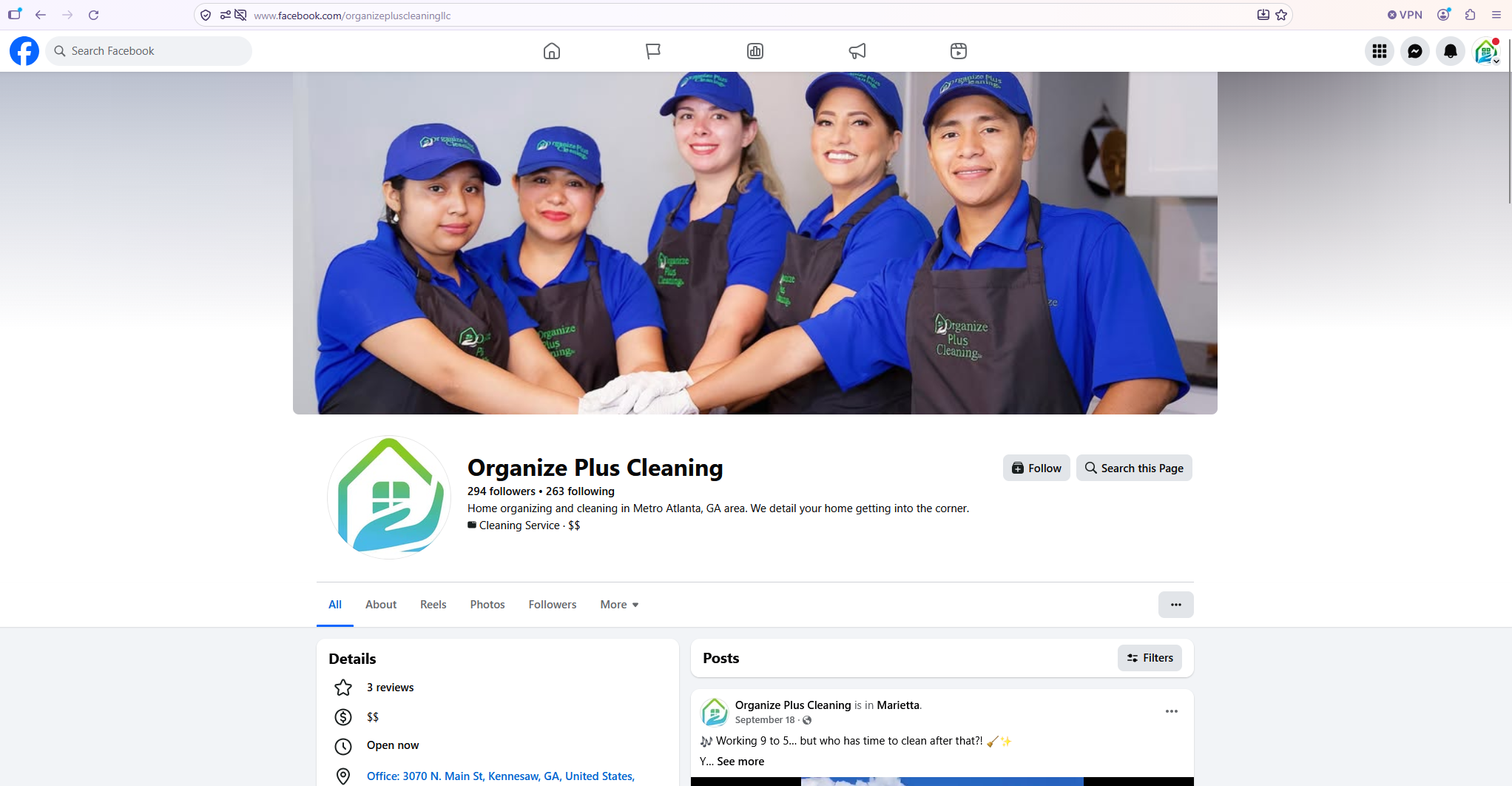
The Page to keep: facebook.com/organizepluscleaningllc (Page ID 100057346844029). It shows “Organize Plus Cleaning,” 294 followers, the real staff photo, “Home organizing and cleaning in Metro Atlanta, GA area,” and the office at 3070 N. Main St, Kennesaw, GA.
Remove this Page
Section titled “Remove this Page”The old Page at facebook.com/organizepluscleaning:
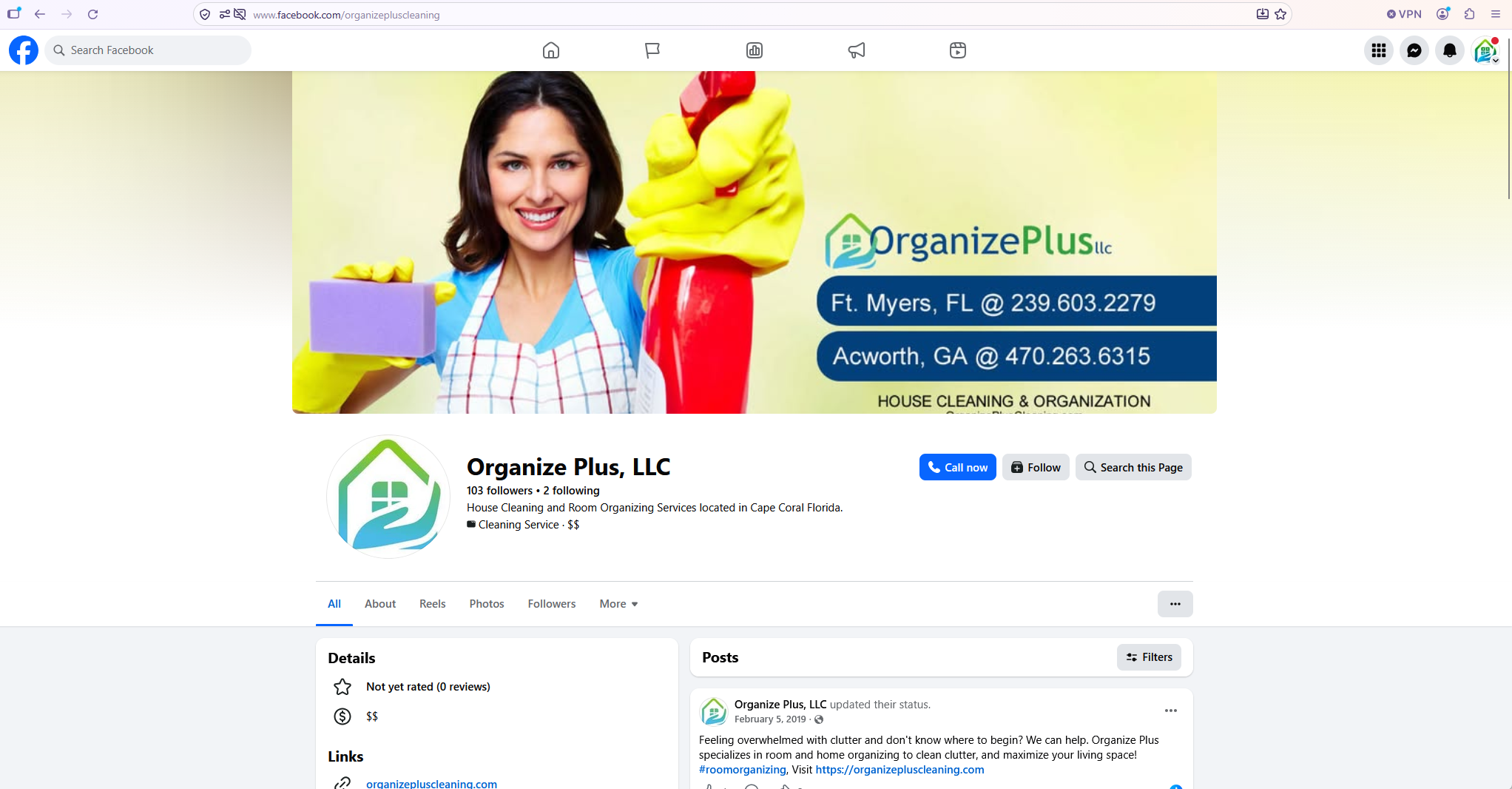
The Page to remove: facebook.com/organizepluscleaning (Page ID 100066469105075). It shows “Organize Plus, LLC,” 103 followers, a stock-photo banner, “located in Cape Coral Florida,” and a last post from February 5, 2019.
Status: a Facebook support ticket already ran into a problem
Section titled “Status: a Facebook support ticket already ran into a problem”We already tried to submit a Facebook Help & Support ticket to remove the old Page, but at the time Facebook would not let the ticket be submitted, for an unknown reason.
Use the options below next, and follow Meta’s own help articles rather than guessing at menu labels (they change from time to time). If a form or button will not submit again, take a screenshot of the error and contact us so we can try another route with you.
Next options to try
Section titled “Next options to try”Which option applies depends on whether anyone on the team still has Facebook access with full control of the old Page. You need that level of access to delete or merge it yourself.
1. If you admin the old Page: delete, deactivate, or unpublish it
Section titled “1. If you admin the old Page: delete, deactivate, or unpublish it”Meta’s official steps for deleting a Page you control are in Delete or cancel deletion of your Facebook Page. You need Facebook access with full control. In short, Meta’s article says:
- Log into Facebook, then click your profile photo in the top right.
- Click See all profiles, then select the Page you want to switch into (the old Page,
organizepluscleaning, not the real one). - Click your Page photo in the top right.
- Click Settings & privacy, then Settings.
- Click Access and control in the left menu.
- Select Delete Page, then click Continue and follow the steps. You may be asked to re-enter your password.
Meta will deactivate the Page immediately, then permanently delete it after 14 days. You can cancel the deletion during that window by reactivating the Page from a personal Facebook profile (not from the Page’s business settings).
If you are not ready to delete it, Meta also documents deactivating or unpublishing a Page to hide it from the public. Those alternatives are described in the same delete/cancel article and in Facebook’s Pages help.
Double-check that you have switched into the old Page before you delete anything. The real Page (organizepluscleaningllc) must stay.
2. If you admin both Pages: consider a merge only if Meta’s requirements are met
Section titled “2. If you admin both Pages: consider a merge only if Meta’s requirements are met”If the same people have full control of both Pages, Meta allows a merge. Official article: Merge 2 Facebook Pages.
Per that article, you switch into the Page you want to keep, then go to Settings & privacy → Settings → Page setup → Merge Pages → Start request. Meta requires that both Pages represent the same thing, have matching names (and matching physical addresses, if applicable), and that you have full control of both. In some cases they also need to be in the same Business Manager / business portfolio.
That may not be available as the Pages look today:
- The names do not match (“Organize Plus Cleaning” vs “Organize Plus, LLC”).
- The listed locations do not match (Kennesaw, GA vs Cape Coral, Florida).
The Page you do not keep is permanently deleted. Meta’s article notes that its posts, photos, reviews, ratings, and username are lost. Only merge if you have confirmed you are keeping facebook.com/organizepluscleaningllc and you have read Meta’s current requirements in the article above.
3. If you do not control the old Page: request access, or report it
Section titled “3. If you do not control the old Page: request access, or report it”If nobody on the team can switch into the old Page as an admin:
- Request access through Meta Business Suite, so a current admin can approve it. Official article: Request access to a Page in Meta Business Suite. You will need a business portfolio that already has a primary Page. This asks for permission to help manage the Page; it does not automatically take ownership.
- If the person with full control is a former contractor or is otherwise unreachable, review whether you are eligible for a Page admin dispute. Meta lists specific situations and required documents in that article. Do not treat this as a guaranteed removal.
- Report the Page as impersonating or pretending to be the business, using Meta’s official instructions: Report a Facebook profile or Page pretending to be you or someone else. In short, go to the old Page, click Options below the cover photo, choose Report Page, and follow the prompts. Have the real Page URL ready:
https://www.facebook.com/organizepluscleaningllc.
You can retry a Help & Support ticket later if the submit button works again. If it still fails, use one of the report or access options above and keep a screenshot of whatever blocked the form.
4. Point people to the real Page
Section titled “4. Point people to the real Page”While the old Page is still up:
- Update any website social icons in Enfold → Social Profiles so they use
facebook.com/organizepluscleaningllc. - On the real Page, keep posting so search results and shares clearly belong there.
- If you still have access to the old Page, Meta’s delete article also covers unpublishing or deactivating it so it is hidden from the public until it can be removed.
Check which Facebook Page the Instagram account is connected to
Section titled “Check which Facebook Page the Instagram account is connected to”The Instagram account to keep is organizepluscleaning (account ID 101648562588205). It should be connected to the real Facebook Page (organizepluscleaningllc), not the old one.
Connecting or disconnecting a professional Instagram account and a Facebook Page is documented by Meta here:
- How to connect or disconnect Instagram and a Facebook Page
- Connect or disconnect an Instagram account and your Page
- How to connect your Instagram account to Meta Business Suite
- How to connect your Instagram account to a business asset
Meta’s Business Help Center describes this as a Meta Business Suite task (for example Settings, then the Accounts / Pages area, then a Connect assets option on the Page). Your Instagram account needs to be a professional account, and both assets generally need to belong to the same business portfolio. Follow the official article that matches the screen you are on, because Meta moves these settings from time to time.
Accounts Center is a different tool. It can list Facebook Pages you manage, and it is also where personal Facebook and Instagram profiles are linked. It is not a substitute for the Business Suite Page-connection steps above. Meta notes that Page settings, including linked accounts, are still managed in Facebook / Meta Business Suite rather than in Accounts Center.
If you are not sure which Page Instagram is currently tied to, open Meta Business Suite, check the connection on the real Page, and remove a connection to the old Page if you find one. Ask us if you would like help walking through it.
Official Meta help links
Section titled “Official Meta help links”- Delete or cancel deletion of your Facebook Page
- Facebook Pages help
- Merge 2 Facebook Pages
- Request access to a Page in Meta Business Suite
- Submit a Page admin dispute
- Report a Page pretending to be you or someone else
- Connect or disconnect Instagram and a Facebook Page
- Connect your Instagram account to Meta Business Suite
- Viewing your Facebook Pages in Accounts Center